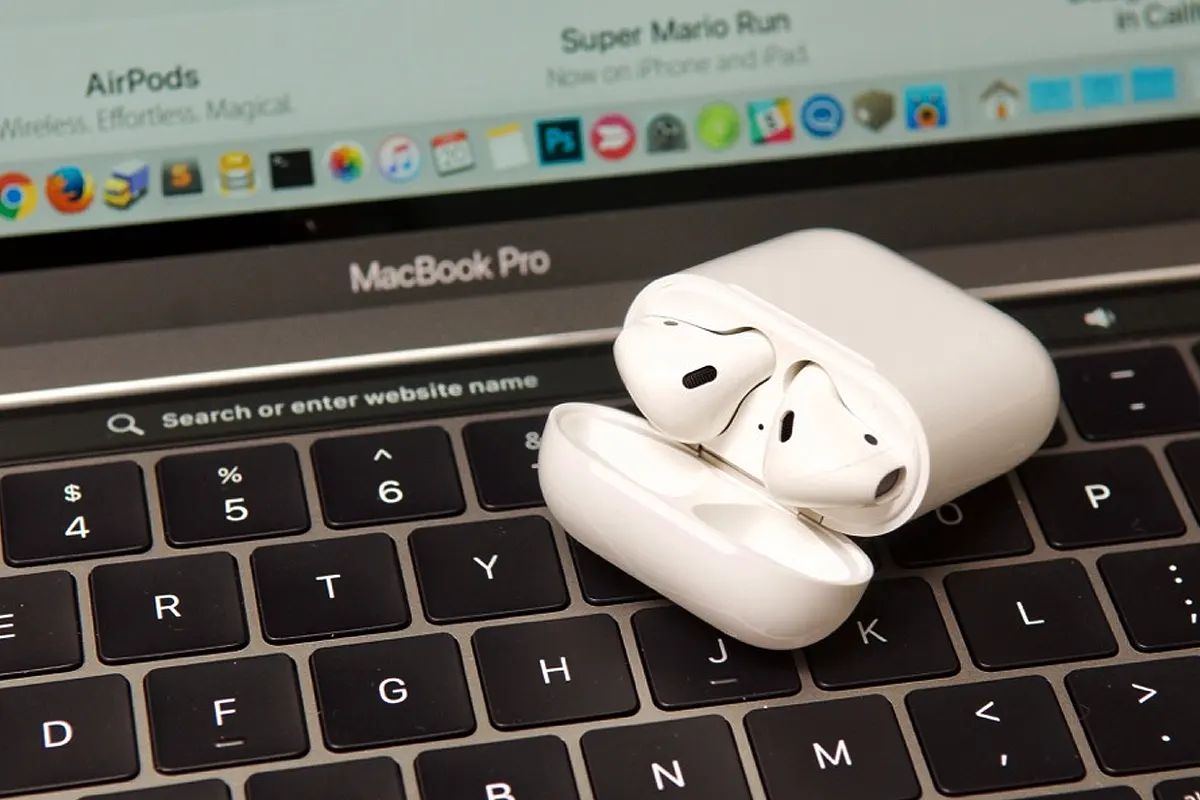
How to Connect Two AirPods to One Mac – Ever wondered if you can connect two AirPods to one Mac? Well, I did, so I had to try it myself. But, let me tell you, the process was not as simple as I expected. However, after a few attempts, I finally figured it out, and now I want to share the easiest way with you!
Why Would You Connect Two AirPods to One Mac?
First, let’s talk about why you might need this trick, because it’s actually super useful.
- When you want to watch movies with a friend, but you don’t want to disturb anyone.
- If you love sharing music, but you hate using only one earbud.
- When you’re gaming together, and you both need to hear every sound perfectly.
Since this feature is so handy, let’s jump straight into the steps!
The Ultimate Step-by-Step Guide
Connecting two AirPods to one Mac isn’t as straightforward as it should be, but you don’t have to worry, because I’ll make it easy for you.
1. Connect the First Pair of AirPods
Before doing anything fancy, let’s start with the basics.
- First, open the lid of your first AirPods case, so your Mac can detect them.
- Then, click the Bluetooth icon in the Mac’s menu bar, because that’s where you’ll see available devices.
- Next, select your AirPods from the list, so they can connect.
- Finally, confirm the connection by playing music, just to make sure everything works.
2. Add the Second Pair of AirPods
Now that the first pair is connected, let’s move on to the second pair, because this is where it gets interesting.
- Keep your first AirPods connected, so they won’t disconnect.
- Then, go to System Settings (or System Preferences, depending on your macOS version), because this is where the magic happens.
- Next, click on “Sound,” so you can access the audio settings.
- After that, select “Output,” because that’s where you’ll find all audio devices.
- Click the “+” button at the bottom, so you can create a Multi-Output Device.
- Add both AirPods to this new device, because that’s the key to making this work.
- Lastly, select it as your main output, so both AirPods receive the same audio.
At this point, both AirPods should be connected, so you and your friend can enjoy the same sound! 🎉
Troubleshooting (Because Nothing Works Perfectly)
If something goes wrong, you don’t have to panic, because I’ve got solutions for you.
- One AirPod isn’t working? Simply disconnect and reconnect both pairs, so the issue gets fixed.
- Laggy or out-of-sync audio? Just remove all Bluetooth devices, then start fresh, because sometimes that helps.
- Mac won’t detect the second AirPods? Restart your Mac first, then try again, because that usually solves it.
These fixes worked for me, so they should work for you too!
Pro Tips for a Better Experience
While using this trick, I discovered a few things that made everything even smoother, so let me share them with you.
- Keep both AirPods charged – You don’t want one pair to die in the middle of a movie, because that would ruin everything.
- Stay close to the Mac – The further you go, the worse the connection gets, so always stay nearby.
- Test before sharing – Make sure both AirPods work before hitting play, because fixing it later is annoying.
Also Read: How to Turn Off Developer Mode on Chromebook (Quick Fix!)
FAQs: How to Connect Two AirPods to One Mac
Can I adjust the volume of each AirPods separately?
No, because both pairs share the same volume level. But, you can adjust it manually on your Mac.
Will this method work on all versions of macOS?
Yes, but older macOS versions might not support it, so always keep your system updated.
Can I connect more than two pairs of AirPods?
Unfortunately, no, because two is the limit, at least for now.
Does this work with other wireless headphones?
Yes, because as long as they support Bluetooth, this method should work.