Where Are My Screenshots Saved Windows 10 – I clearly remember the first time I took a screenshot on Windows 10, and I instantly hit the PrtScn key, but then, a bigger problem hit me—where did my screenshot go? I frantically searched my desktop, quickly checked my downloads, and even peeked into my secret “random stuff” folder, yet I found nothing! Since I refused to give up, I started digging, and after some time, I finally figured it out, so today, I’m sharing everything with you.
Where Do Windows 10 Screenshots Go?
If you’ve ever taken a screenshot and it magically disappeared, then here’s where to check:
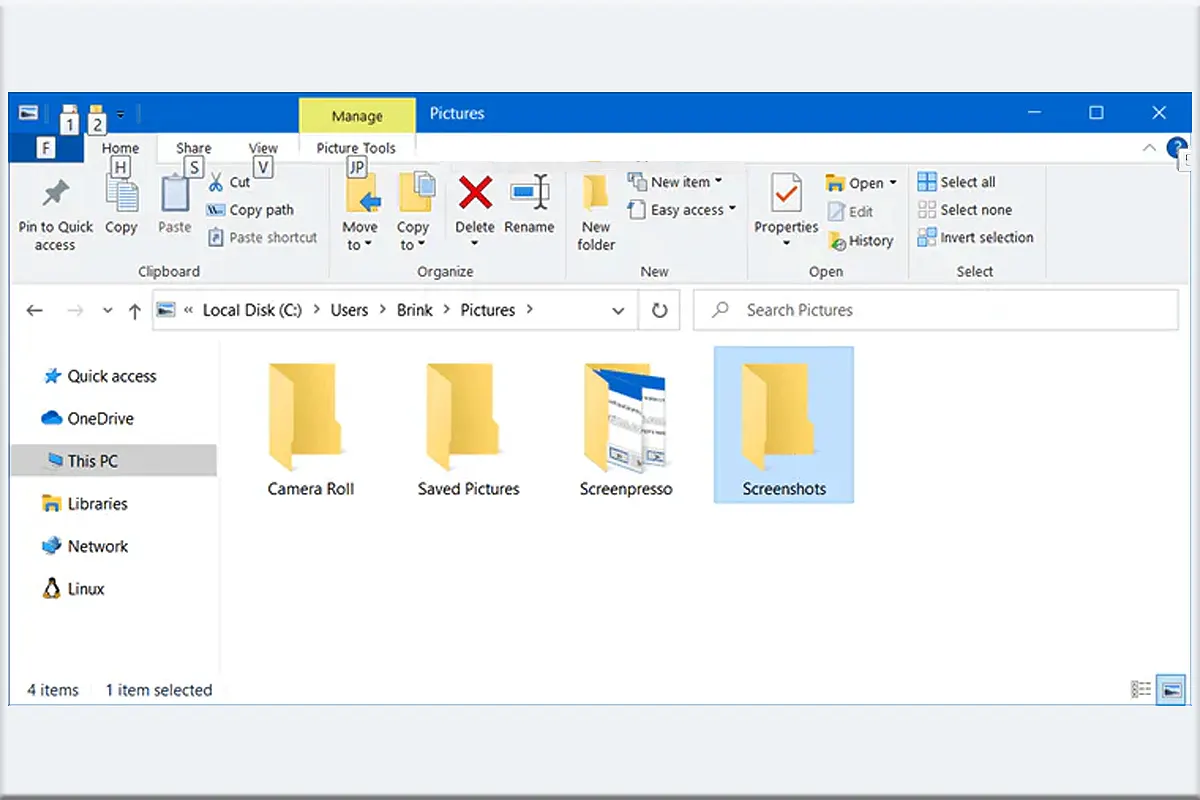
- Screenshots Folder: When you press Windows + PrtScn, the screenshot is automatically saved in
C:\Users\YourName\Pictures\Screenshots, so check there first. - Clipboard: If you only press PrtScn, Windows immediately stores the image in the clipboard, meaning you need to paste it into Paint, Word, or any image editor before saving.
- OneDrive Auto-Save: If OneDrive is enabled, then your screenshots might be automatically stored in
OneDrive\Pictures\Screenshots, so checking there is a good idea. - Snipping Tool & Snip & Sketch: These tools allow you to manually choose where to save, so you should always check your last saved folder just in case.
How to Change Screenshot Save Location?
If you prefer screenshots to be saved somewhere else, then follow these simple steps:
- Go to Pictures > Screenshots, because that’s the default location.
- Right-click > Properties > Location tab, so you can access location settings.
- Click “Move” and select a new folder, which will be the new default save location.
- Hit Apply, then OK!, so all your screenshots will now be saved in the chosen folder.
Different Ways to Take Screenshots in Windows 10
Windows 10 provides multiple ways to capture your screen, so here are the best methods:
- PrtScn (Print Screen): This method copies the screen to the clipboard, so you need to paste it manually.
- Windows + PrtScn: This instantly saves the screenshot in the Screenshots folder, so you don’t need to paste anything manually.
- Alt + PrtScn: This captures the active window and stores it in the clipboard, so you can paste it anywhere.
- Windows + Shift + S: This opens Snip & Sketch, which allows custom cropping.
- Snipping Tool: This lets you capture a selected area and manually choose where to save it.
Why Can’t I Find My Screenshots?
If your screenshots seem to vanish into thin air, then here’s what could be happening:
- Clipboard Overwrite: If you take another screenshot before pasting, then the first one is lost forever.
- OneDrive Sync Issues: If OneDrive isn’t running, then it won’t save your screenshots there.
- Wrong Save Location: If you use Snipping Tool, then your last saved folder might be different.
- Accidental Deletion: If you accidentally deleted your screenshot, then check the Recycle Bin.
Quick Fix: Use Windows + V to check your clipboard history, because it saves multiple copied items.
How to Find Screenshots Faster?
Nobody wants to dig through folders every time they take a screenshot, so here’s how to make life easier:
- Pin Screenshot Folder to Quick Access, because it allows instant access.
- Use the Snipping Tool for Custom Saves, so you can decide exactly where to store each screenshot.
- Enable OneDrive Auto-Save, so your screenshots are automatically backed up.
- Use a Screenshot Manager App, because tools like Lightshot or ShareX help organize images better.
Also Read: Can You Change Your MAC Address? Here’s How!
FAQs: Where Are My Screenshots Saved Windows 10
1. Why aren’t my screenshots saving automatically?
If you only press PrtScn, then it only copies the image to the clipboard instead of saving it, so use Windows + PrtScn to save automatically.
2. How do I recover lost screenshots?
If your screenshots are missing, then check OneDrive, clipboard history (Windows + V), and Recycle Bin.
3. Can I take a screenshot of only one window?
Yes! If you press Alt + PrtScn, then it captures only the active window.
4. Why are my screenshots saving to OneDrive instead of Pictures?
If OneDrive is enabled, then auto-save might be on, so disable it in OneDrive settings.
5. How do I take a scrolling screenshot?
If you need to capture an entire page, then use third-party tools like ShareX, PicPick, or Snagit.